For the full reference on templates, transfers, file limits and panel orientation, see our Tesla Paint Shop guide.
If you’ve seen a Tesla with a wild custom skin on its touchscreen, that’s a Toybox wrap. Tesla’s Paint Shop, tucked inside Toybox, lets you put your own PNG on the 3D car on the screen and in the Tesla App. No vinyl, no paint booth, no cost: just a compatible image and a few minutes.
This guide covers where it lives, which template you need, how to get a design and how to load it, plus the tricks most tutorials skip.
Where to find wraps in Toybox
On the car screen, tap the Tesla “T” logo or the app launcher, open Toybox, then Paint Shop, then the Wraps tab. Tesla’s built-in wraps are there, and any custom wraps you add appear alongside them. If you don’t see Paint Shop, install the latest software update. New to the names? Our Toybox and Paint Shop glossary explains each one.
What is a Tesla wrap?
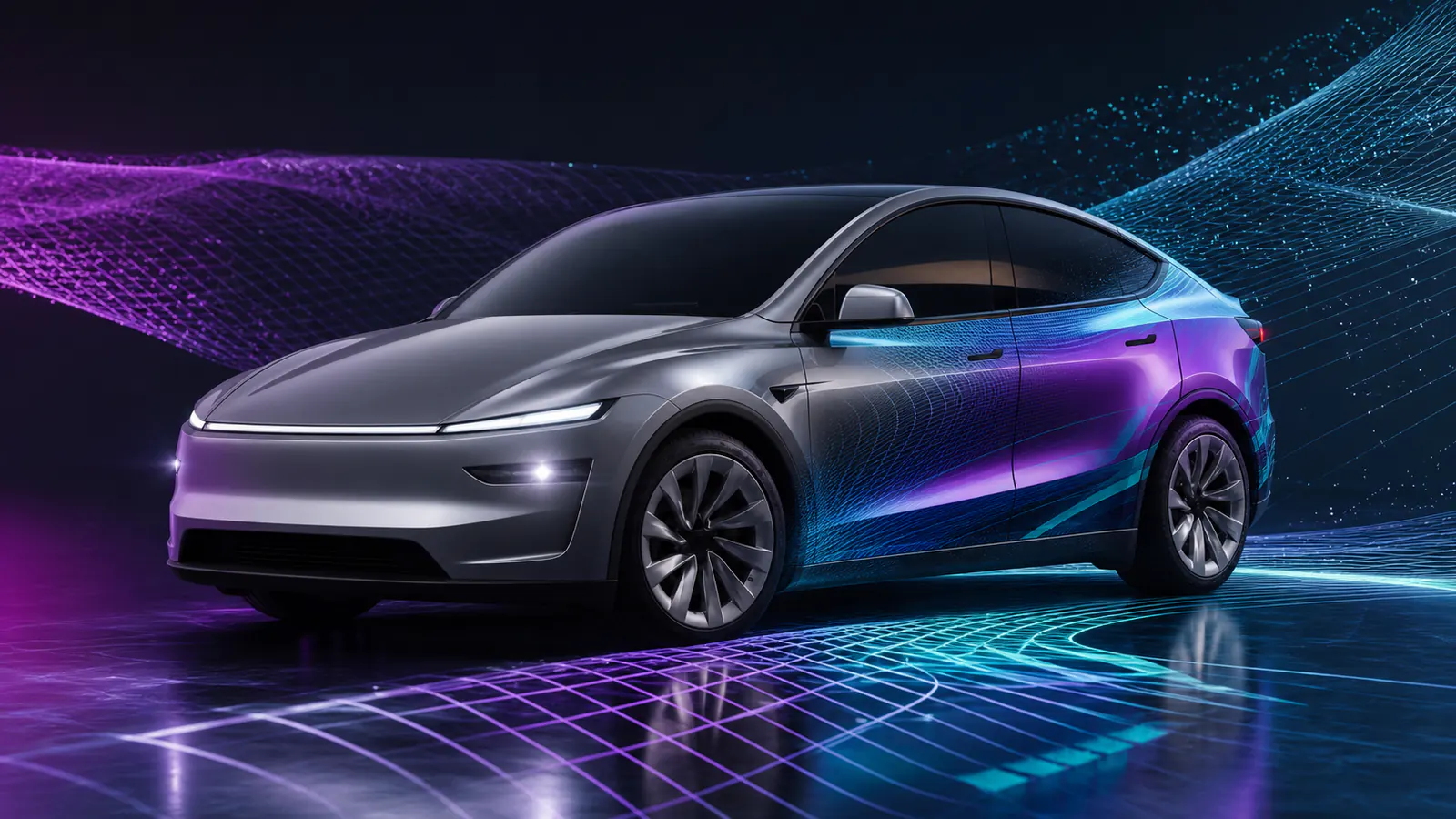
A Tesla wrap (also called a Toybox wrap or Paint Shop wrap) is a PNG image that recolors the 3D car shown on your Tesla’s touchscreen and in the Tesla App. It is digital only: it does not touch the real paint, and it costs nothing to add.
Every Tesla has a 3D model of itself on the touchscreen. A Toybox wrap is a flat PNG that Paint Shop maps onto that model using UV coordinates: each pixel in your image lands on a specific spot on the body.
That is why you can’t use just any picture. The PNG has to be built on the template for your exact model. A Model 3 template won’t work on a Cybertruck, and a pre-2024 Model 3 template won’t line up on the refreshed Model 3 (Highland).
Which template do you need?
Toybox wraps work on current Teslas, but there are more template variants than most people expect:
- Model 3 (2017–2023) and Model 3 2024+ (Highland), with a separate 2024+ Performance template. See the Model 3 template guide.
- Model Y (2020–2024), Model Y 2025+ (Juniper) Standard, Premium and Performance, and Model Y L. See the Model Y template guide.
- Cybertruck: its own angular template at 1024×768. Browse Cybertruck wraps.
- Model S and Model X: see the Model S and Model X guide.
Using the wrong template is the number one reason a wrap looks wrong. Check your model year (the 10th character of the VIN) before you start.
Three ways to get a Toybox wrap
Option 1: Download from the gallery
The fastest path. The community gallery has ready-made designs for every template. Filter by your model, open a design, check the vehicle name and download the PNG. Most designs are free; paid creator designs are clearly marked.
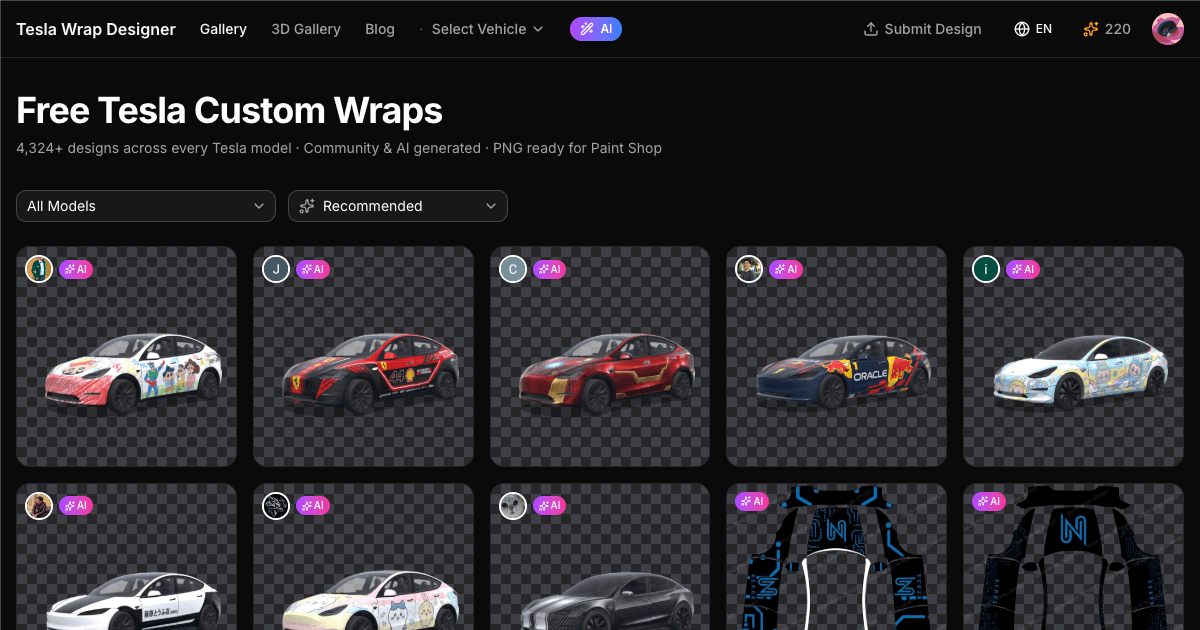
The gallery sorts by popularity, so the top results are designs other owners actually downloaded. You can jump straight to Model 3, Model Y or Cybertruck wraps.
Option 2: Design your own
The online wrap editor loads the right template for your model on a drag-and-drop canvas. Add images, text, shapes and colors, and watch them on a real-time 3D car before you export.
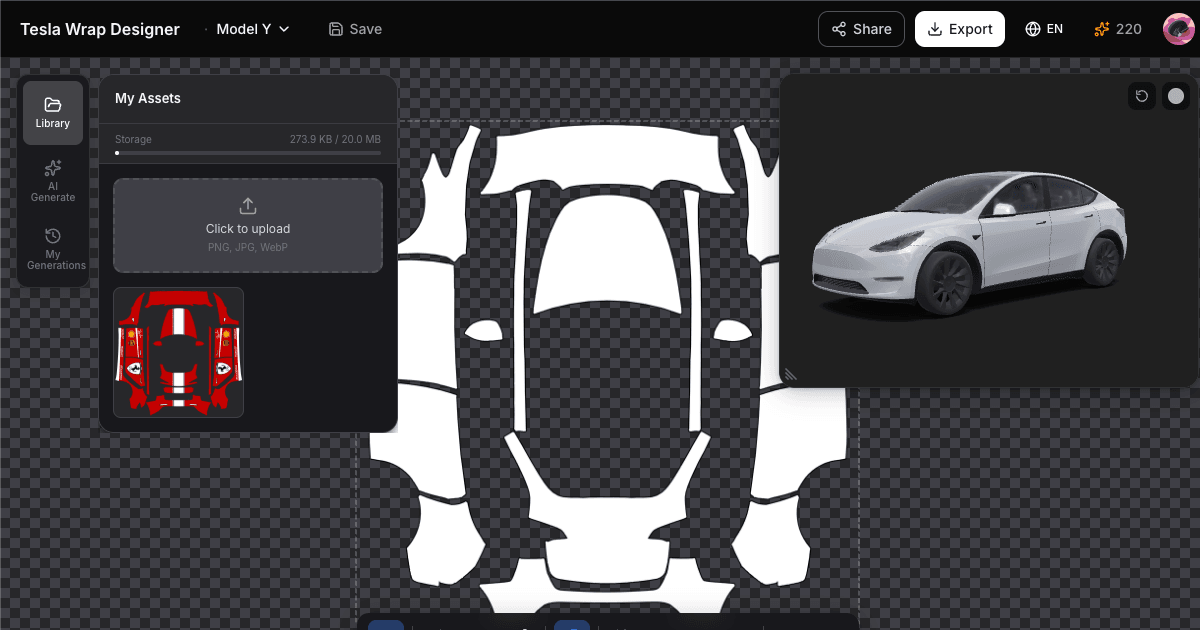
The 3D preview matters more than you’d think. A design that looks great flat can look wrong on the car because the template stretches and compresses around curves. Checking in 3D saves you the loop of exporting, loading, checking in the car and going back.
Option 3: Let AI do it
Describe what you want, such as “matte black with gold racing stripes”, and the AI wrap generator creates a design that fits the template. It’s a strong starting point you can then tweak in the editor. AI generation uses credits.
Loading your wrap into Toybox
From the Tesla App (4.59.0 or later): save the PNG on your phone, open Creations → Wrap → Upload, pick the file and apply it. The app holds up to 10 uploads. Step by step: upload a wrap from the Tesla App.
From a USB drive:
- Format the drive as exFAT or FAT32 (MS-DOS FAT, ext3 and ext4 also work; NTFS does not).
- Create a folder at the root named exactly
Wraps. - Copy up to 10 PNG files into it: 512–1024 px per side at your template size, 1 MB or smaller each, filenames of 30 characters or fewer.
- Plug the drive into the car (the glovebox port is the most reliable).
- Open
Toybox → Paint Shop → Wrapsand select your design.
Not showing up? Check the folder name, the file size, the dimensions and the drive format first. Our PNG checker tests every file rule at once, and the Paint Shop troubleshooting guide covers the rest.
Design tips from thousands of wraps
- Respect the seams. The template has visible panel boundaries (hood, doors, fenders). Designs that align with or deliberately flow across them look professional; designs that ignore them look like wallpaper.
- Less is more. Busy full-body designs impress in the editor but feel cluttered on the small car render. Many of the most downloaded wraps are a single accent color, a clean stripe or a subtle gradient.
- Go bold. Dark, saturated colors and high contrast read better on the touchscreen than pastels or very light designs.
- Always check in 3D. What looks centered on the flat template can be off-center on the car. The 3D preview catches it instantly.
What’s next
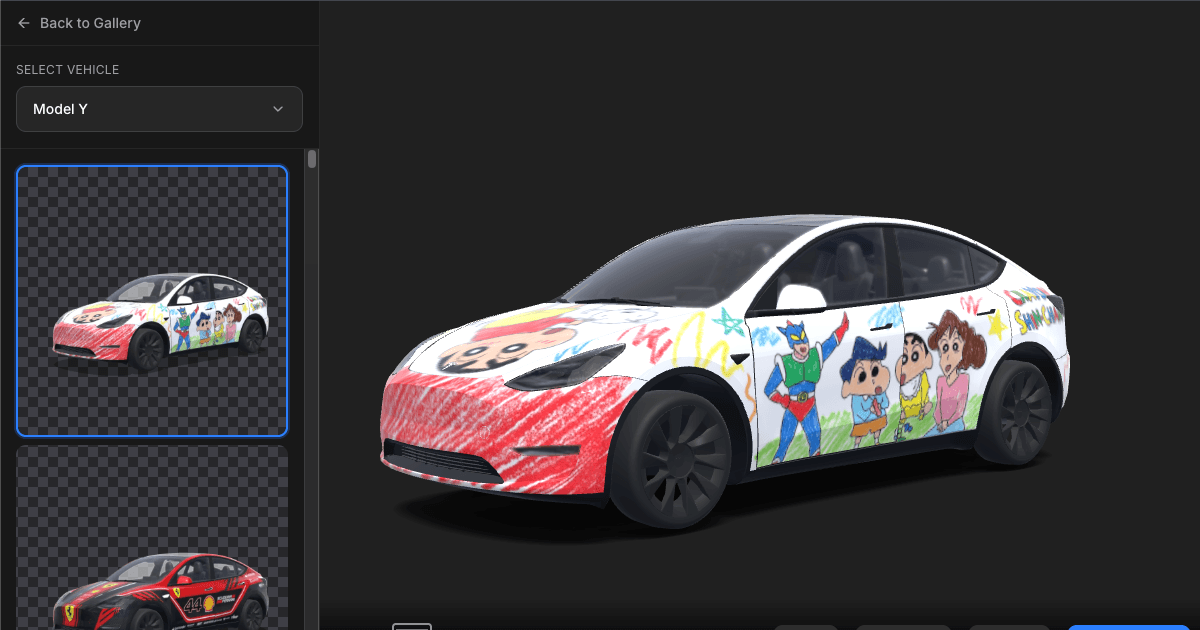
New to Toybox wraps? Browse the gallery to see what’s possible. Ready to make your own? Open the editor and pick your model; from blank template to car-ready PNG takes about 10 minutes once you know what you want.
Made something you’re proud of? Share it to the gallery. The most popular community designs are featured on our homepage.