Tesla Paint Shop is one of those features that's either dead simple or incredibly frustrating, with almost nothing in between. Tesla now documents two transfer paths: upload a compatible PNG from Tesla App v4.59.0 or later, or use a USB drive. When neither path works, the interface can provide very little explanation.
We've helped thousands of people get their wraps working. Here's everything we know.
How Paint Shop Actually Works
Paint Shop lives inside Toybox on your Tesla's touchscreen. It applies compatible PNG files as skins to the 3D vehicle model on the display. You can now add those files from the Tesla App, while the original USB Wraps folder remains supported.
To access it: tap the Tesla "T" logo → Toybox → Paint Shop → Wraps tab. If you don't see Toybox, make sure your software is up to date. Paint Shop has been available since around 2022 on most models.
Try the Tesla App Upload First
With Tesla App v4.59.0 or later, open Creations → Wrap → Upload and select a compatible PNG from your phone. The image must be 512x512 through 1024x1024 pixels, no larger than 1 MB, and use a filename of 30 characters or fewer containing only letters, numbers, underscores, dashes, or spaces. The mobile app supports up to 10 uploaded files.
If the Upload entry has not reached your vehicle or account, use the USB instructions below. For a step-by-step mobile checklist, see How to Upload a Custom Tesla Wrap from the Mobile App.
The USB Setup (Where 90% of Problems Happen)
Getting the USB right is the whole game. Here's the exact setup that works:
Step 1: Format the Drive
Use exFAT or FAT32. Both work reliably. MS-DOS FAT (for Mac users), ext3 and ext4 are also supported. The only format that does NOT work is NTFS. Also make sure the USB drive doesn't contain map updates or firmware files — Tesla ignores drives with those.
Step 2: Create the Folder
At the root of the USB drive, create a folder named exactly: Wraps
Not TeslaWraps. Not wraps. Not Wrap. The exact string Wraps with a capital W. Tesla's software won't find your files if the folder name is wrong.
Step 3: Add Your PNG Files
Drop your wrap PNG files directly into the Wraps folder. Requirements:
- Format: PNG only
- Resolution: 512x512 or 1024x1024 pixels
- File size: Under 1 MB each
- Filename: Max 30 characters, only letters, numbers, underscores, dashes, and spaces
- Quantity: Up to 10 images per session
Don't put files in subfolders — Paint Shop doesn't scan subdirectories.
Step 4: Plug In
Use the USB port in the glovebox for the most reliable connection. The center console ports work too, but some owners report intermittent detection issues with those ports on older firmware.
Troubleshooting: Wraps Not Showing Up
If you've followed the steps above and Paint Shop still shows nothing, work through this checklist:
- Verify the folder name — Open the USB on a computer and check. It should be
Wrapsat the root level, not inside any other folder. - Check the file format — Only PNG files work. If you have JPG, WEBP, or any other format, convert to PNG first.
- Check file size — Each PNG must be under 1 MB. If your file is larger, reduce the resolution or compress it.
- Check resolution — Must be 512x512 or 1024x1024 pixels. Other sizes may not load.
- Reformat the USB — Use exFAT or FAT32. NTFS is not supported.
- Try a different USB drive — Some cheap drives have compatibility issues. A basic SanDisk or Samsung drive under 32GB is the safest bet.
- Reboot the touchscreen — Hold both scroll wheels on the steering wheel for about 10 seconds until the screen goes black and restarts.
- Check for software updates — Older firmware versions had bugs with Paint Shop. Update to the latest version.
Troubleshooting: Wrap Looks Wrong on the Car
If the wrap loads but looks distorted, misaligned, or just weird:
- Wrong template — This is the most common cause. A Model 3 Classic template won't work on a Model 3 Highland. A Model Y template won't work on a Model Y Juniper. Make sure you're using the template for your exact model and year.
- Wrong resolution — Paint Shop requires 512x512 or 1024x1024 pixels. Other dimensions may cause distortion or fail to load.
- Rotated or flipped — Some image editors rotate images on export. Check that your PNG hasn't been rotated 90 degrees.
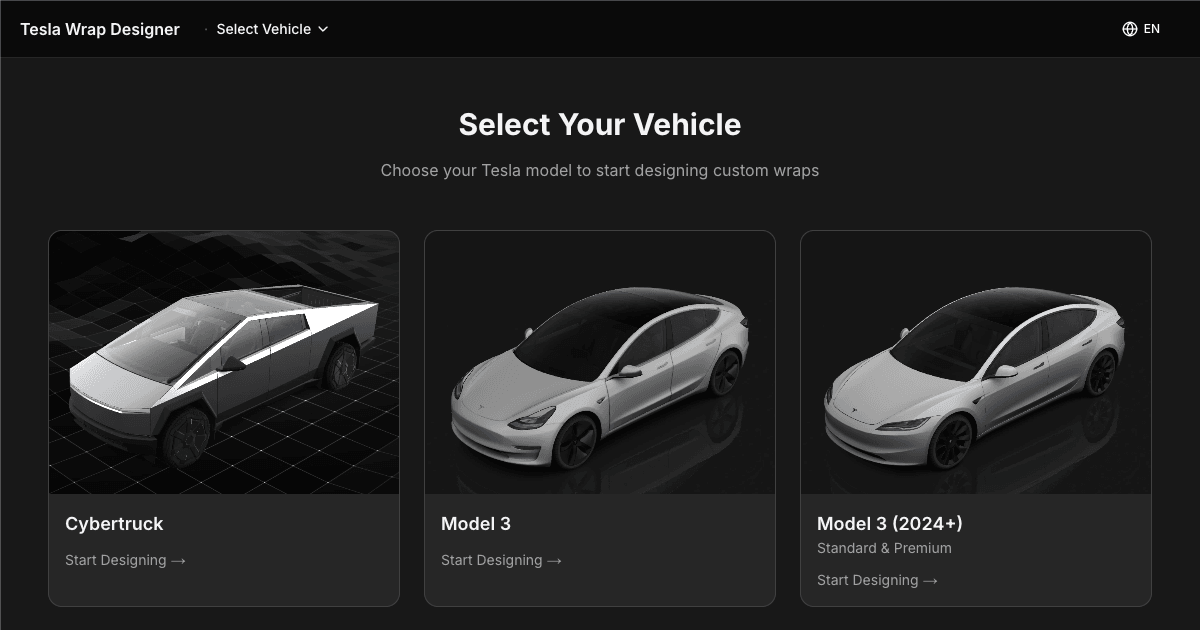
The easiest way to avoid all of these issues: use our online editor, which automatically uses the correct template for your model and exports at the right resolution.
Where to Get Custom Wraps
Three sources, from easiest to most effort:
- Our gallery — Thousands of free, ready-to-download wraps. Filter by your model, download the PNG, done.
- Our editor — Design your own with drag-and-drop tools and AI generation. Includes 3D preview so you can see exactly how it'll look before downloading.
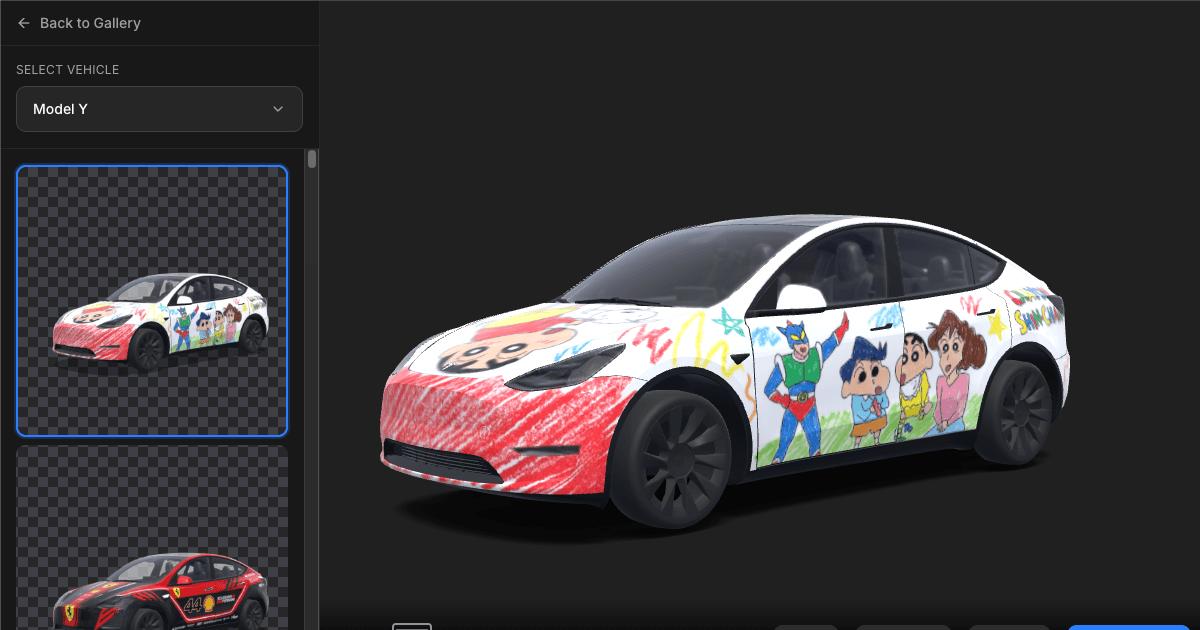
- Photoshop / Illustrator — Download the blank UV template and go wild. Best for professional designers who want full control.
FAQ
Does Paint Shop cost anything?
No. It's a free feature built into every Tesla. The wraps on our site are also free.
Can Paint Shop damage my car?
No. It's purely a display feature on the touchscreen. It doesn't affect the physical paint, the cameras, or any vehicle systems.
How many wraps can I store on one USB?
Up to 10 per session. Paint Shop loads all PNG files from the Wraps folder, up to 10 at a time.
Do wraps persist after removing the USB?
The currently selected wrap stays active even after you remove the USB. But to switch to a different custom wrap, you'll need to plug the USB back in.