
Start with our Tesla Paint Shop guide for vehicle templates, design steps, App and USB transfers, file-size limits and panel orientation.
To upload a custom Tesla wrap from your phone, update to Tesla App version 4.59.0 or later, open Creations → Wrap → Upload, and select a compatible PNG. The image must be 512×512 through 1024×1024 pixels, no larger than 1 MB, and use an allowed filename of 30 characters or fewer.
Custom Tesla wrap upload requirements
| Requirement | Official rule | Practical check |
|---|---|---|
| Format | PNG | The filename ends in .png and the file is actually PNG data |
| Resolution | 512×512 through 1024×1024 pixels | Use the template's native size for the best mapping |
| File size | No larger than 1 MB | Check the saved file, not the editable source document |
| Filename characters | Letters, numbers, underscores, dashes, and spaces only | Avoid parentheses, emoji, punctuation, and non-Latin characters |
| Filename length | 30 characters maximum | Count the extension as part of the filename |
| Mobile capacity | Up to 10 files | Remove an older upload before adding an eleventh |
| USB capacity | Up to 10 files | USB is a separate supported transfer route |
A safe example is wrap-my-153045.png. It is short, uses only allowed characters, identifies the vehicle with a compact code, and avoids the parentheses that an operating system may add when the same generic filename is downloaded repeatedly.
How to upload a Tesla wrap from the mobile app
Step 1: Create or download a compatible PNG
Start with the official template for your vehicle. Tesla's custom-wraps repository publishes the templates and requirements. The Tesla Wrap Designer editor selects the matching template, lets you place images, text, and shapes, shows the result in 3D, and exports a 1024×1024 PNG under the 1 MB limit.
If you are changing only the on-screen plate instead of the full vehicle wrap, use the Tesla License Plate Generator to create and preview a separate plate PNG.
If you do not want to design from scratch, choose a model-specific image from the community Gallery. Always verify that the selected design matches your exact vehicle variant.
Step 2: Save the PNG to your phone
Download the finished PNG into Files, Downloads, Photos, or another location the Tesla App file picker can access. Do not rename it with parentheses or extra punctuation. If your phone automatically creates a duplicate such as wrap (1).png, rename it to an allowed form such as wrap-2.png.
Step 3: Update Tesla App to v4.59.0 or later
Open the App Store or Google Play, find Tesla, and confirm the installed version is 4.59.0 or later. Tesla features can roll out independently of app installation, so a current app is necessary but may not guarantee immediate availability for every vehicle, market, or account.
Step 4: Open Creations → Wrap → Upload
Open your vehicle in the Tesla App, go to Creations, choose Wrap, and tap Upload. If the entry is not visible, first re-check the app version, vehicle software, selected vehicle, and rollout availability.
Step 5: Select, preview, upload, and apply the wrap
Select the PNG saved in Step 2. Review the preview carefully around the hood, doors, fenders, roof, and bumpers. If the pattern is stretched or misplaced, return to the correct UV template and revise the design instead of trying to correct it in the Tesla App.
After upload, select the wrap in the available list and apply it. Tesla's documentation allows up to 10 mobile uploads. Delete an older entry if the list is full.
Troubleshooting a Tesla App wrap upload
The Upload button is missing
- Confirm Tesla App is version 4.59.0 or later.
- Check that you are viewing the intended vehicle in a multi-vehicle account.
- Install the vehicle software release offered to your car.
- Allow for a staged rollout; availability can differ by model, region, and account.
The app rejects the image
- Verify that the file is a real PNG, not a JPEG or WebP renamed to
.png. - Keep both width and height between 512 and 1024 pixels.
- Reduce the final saved file to 1 MB or less.
- Shorten the complete filename to 30 characters or fewer.
- Use only letters, numbers, underscores, dashes, or spaces.
The preview looks distorted
This usually means the image was built on the wrong template or important artwork crossed a UV seam. Choose the exact Model 3, Model Y, Model S, Model X, or Cybertruck variant, then check the design in a 3D preview before exporting again.
The app already contains 10 wraps
The mobile route supports up to 10 uploaded files. Remove an older wrap, or use the separate USB method for another set of up to 10 compatible files.
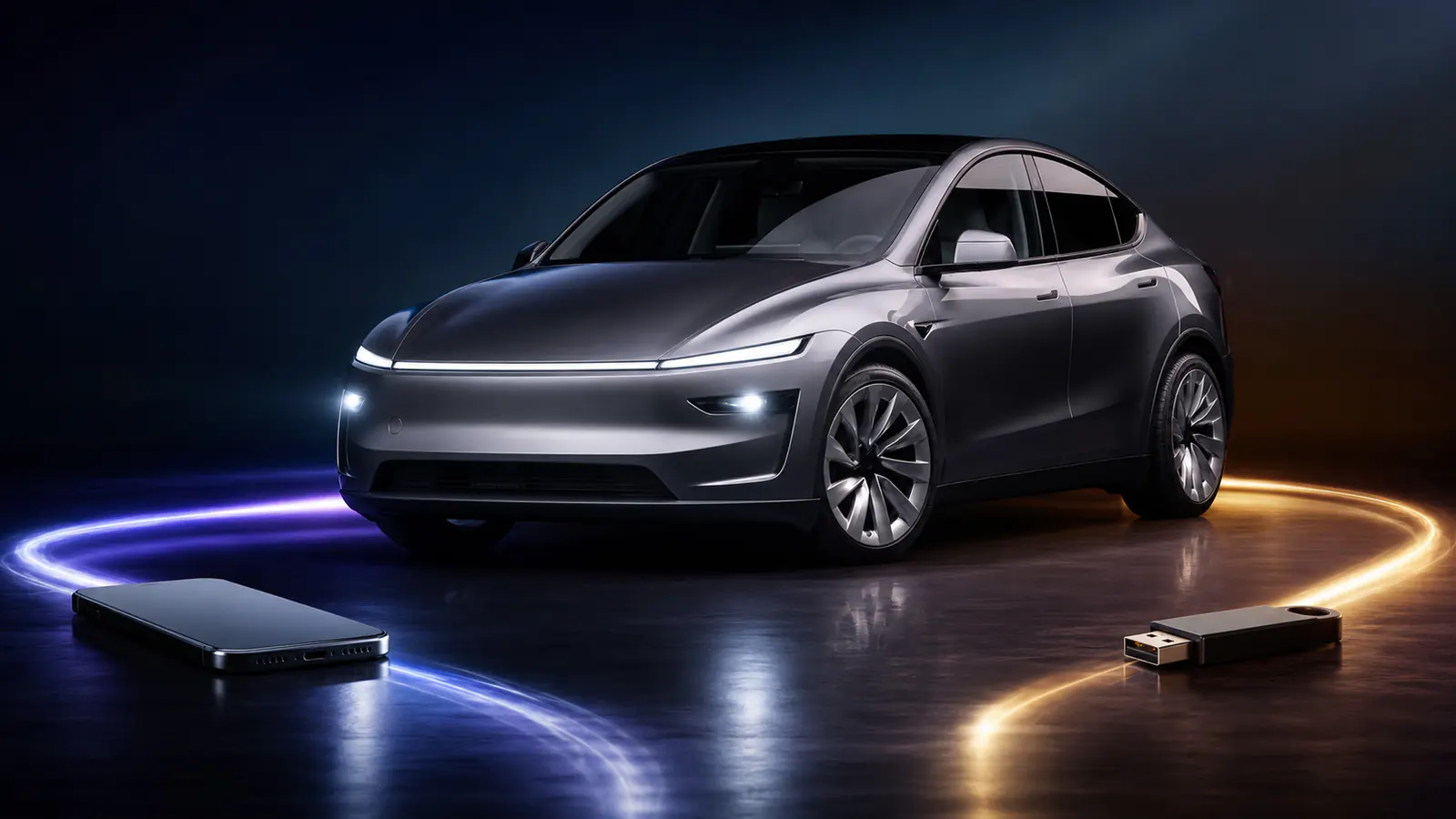
Wraps folder.USB fallback: load a wrap through Paint Shop
If the mobile control has not reached your account, or you prefer removable storage, Tesla still documents USB:
- Prepare up to 10 compatible PNG files using the same size and filename rules.
- Format the USB drive as exFAT, FAT32, MS-DOS FAT, ext3, or ext4. NTFS is not supported, and the drive should not also hold map or firmware update files.
- Create a root-level folder named exactly
Wrapson that drive. - Place the PNG files inside that folder.
- Connect the drive to the vehicle.
- On the vehicle display, open
Toybox → Paint Shop → Wraps. - Select and apply the design.
If no files appear, the most common cause is an unsupported USB format such as NTFS. Re-check the drive format, folder name, image dimensions, file size, filename, and file count. Test with one simple PNG before copying a full set.
Frequently asked questions
Can I upload any photo as a Tesla wrap?
Not reliably. The file must satisfy Tesla's PNG requirements and map to the UV template for the exact vehicle. A normal photo may upload but will stretch unpredictably across body panels. Build the artwork on the correct template and check it in 3D first.
Does Tesla Wrap Designer upload directly to my car?
No. Tesla Wrap Designer creates and exports the compatible image. You remain in control of the transfer: save the PNG to your phone and upload it in the Tesla App, or copy it to a USB Wraps folder.
Should I use 512×512 or 1024×1024?
Use the native size of the official template whenever possible. A 1024×1024 template preserves more detail while remaining inside Tesla's supported range. The final PNG must still be 1 MB or smaller.
Can mobile and USB each store 10 files?
Yes. Tesla's July 22 instructions state that the mobile app supports up to 10 files and USB supports up to 10 files. Treat them as two documented transfer methods, not a single shared 10-file folder.
Ready to upload your first wrap?
Start with one vehicle-specific design, preview it, export a short-named PNG, and run through the mobile steps above. You can create a Tesla wrap in the editor, download a community design, or read the full Tesla 2026 Summer Update overview.
Sources: Tesla's official mobile upload instructions, the official custom-wraps repository, and the Tesla App support page, reviewed July 23, 2026.