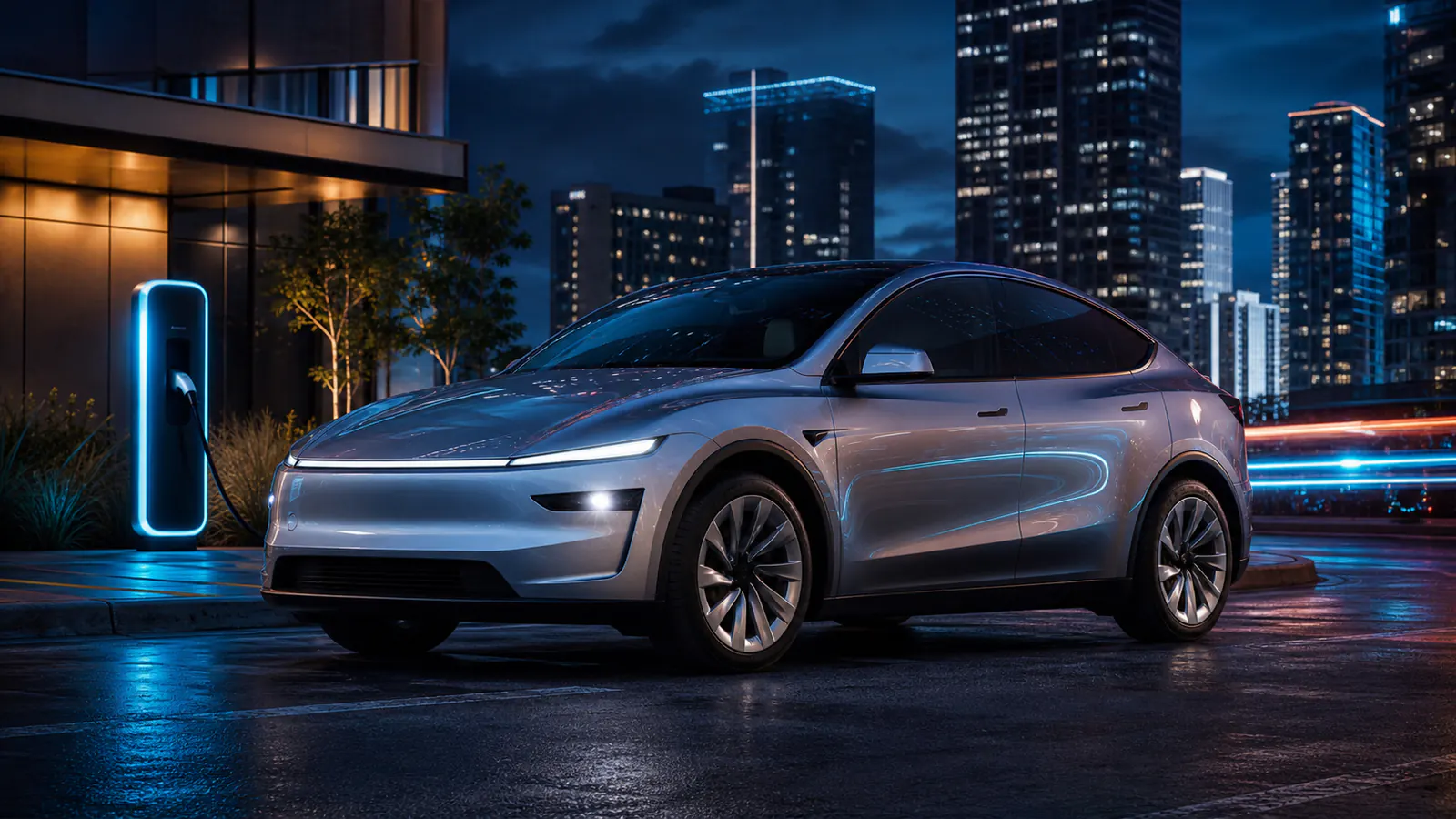
Tesla's 2026 Summer Update makes the mobile app a more useful extension of the car. The release adds custom wrap uploads from a phone, more Grok commands, Self-Driving statistics, navigation improvements, Caraoke scoring, Rear Display Lock, and a collection of smaller media and interface updates.
Tesla 2026 Summer Update at a glance
| Feature | What changed | Why it matters |
|---|---|---|
| More Grok commands | Expanded in-car voice command coverage | More tasks can be handled conversationally |
| Self-Driving stats | Driving statistics are available in the Tesla App | Owners can review activity away from the car |
| Automatic Navigation | Navigation can anticipate routine destinations | Common trips require less setup |
| Preferred Routes | Drivers can save a route preference | Repeated trips can follow the path you favor |
| Arrival Energy | Arrival-energy controls extend to the mobile app | Trip planning is easier before entering the vehicle |
| Custom wrap upload | Compatible wrap PNGs can be uploaded from the phone | A USB drive is no longer the only transfer route |
| Caraoke scoring | Caraoke adds a score-based layer | The parked entertainment feature becomes more interactive |
| Rear Display Lock | The front row can control rear-display access | Useful for family trips and passenger management |
More Grok commands and Self-Driving stats
Tesla lists expanded Grok abilities such as making phone calls, searching and playing music, adjusting climate, opening the glovebox, and answering questions about your car. The direction is clear: the assistant is moving from answering questions to handling in-car actions. The exact command set still varies with software, configuration, language, and region, so treat the controls in your own vehicle as authoritative.
The mobile app also gains Self-Driving statistics. This moves a part of the driving experience out of the center display and onto the device owners already use for charging, climate, location, and vehicle controls. It is a small interface shift, but it makes performance and usage information easier to review after a trip.
Smarter navigation, Preferred Routes, and Arrival Energy
Automatic Navigation based on routines
Automatic Navigation can use routine behavior to surface a likely destination. For recurring commutes or school runs, that means less repetitive setup. As with any prediction, the driver still needs to confirm that the destination and route are correct before relying on it.
Preferred Routes
Preferred Routes addresses a familiar navigation problem: the mathematically fastest route is not always the route a driver wants. A familiar road, predictable charging stop, or calmer path may be preferable even when another option is marginally faster.
Arrival Energy in the Tesla App
Arrival Energy controls in the mobile app let owners consider the battery target before getting into the vehicle. This is particularly useful when a trip includes charging, weather, elevation, or a destination where charging access is uncertain.
Caraoke scoring, Rear Display Lock, and smaller improvements
Caraoke now scores your singing while parked, and high scores are saved to your Tesla profile — a lightweight game layer on an existing feature. Rear Display Lock lets the front row control what plays on the rear screen, which is especially relevant when children are riding in the back.
The release also groups several quality-of-life changes:
- Search for Superchargers by name.
- Manage the Apple Music queue more easily.
- Adjust the Self-Driving visualization view.
- Use camera and microphone capabilities in the in-car browser where supported.
- See refreshed introductory animations on newer Model 3 and Model Y vehicles.
These are not headline features on their own, but together they reduce friction across navigation, media, browser use, and first-run vehicle experiences.
Why mobile custom wrap upload matters
Before this update, the documented workflow centered on a USB drive with a root-level Wraps folder. The July 22 update to Tesla's official custom-wraps repository adds the mobile path: update to Tesla App v4.59.0 or later, then open Creations → Wrap → Upload.
The file rules remain strict. A wrap must be a PNG between 512×512 and 1024×1024 pixels, no larger than 1 MB, and its filename must be no more than 30 characters using only letters, numbers, underscores, dashes, or spaces. The app can hold up to 10 uploaded files, while USB can hold up to 10 files as a separate path.
That changes the last mile, not the design problem. The image still has to match the correct vehicle UV template. Tesla Wrap Designer's editor helps by selecting the matching template, showing a live 3D preview, and exporting a compatible PNG. It does not connect to a Tesla account or upload directly to a vehicle; the user saves the file and finishes the upload in the Tesla App.
Only customizing the on-screen plate? The free Tesla License Plate Generator creates a separate wide or US-style PNG locally in your browser and previews supported combinations in 3D.
For the exact phone workflow, file checklist, troubleshooting, and USB fallback, read How to Upload a Custom Tesla Wrap from the Mobile App. If you want a ready-made starting point, browse the Tesla wrap Gallery.
Availability, rollout, and source notes
Tesla software features often roll out in stages. The official announcement does not mean every item will appear immediately on every vehicle. Hardware, model, market, language, mobile-app version, and vehicle software can affect availability. Check the release notes shown in your vehicle and the controls visible in your Tesla App before planning around a feature.
This summary is based on Tesla's official Summer Release 2026 post, the official custom-wraps mobile-upload update, and Tesla's Tesla App support page. We also reviewed Electrek's release-note overview for secondary context.
Frequently asked questions
Does the Summer Update let a website upload a wrap directly to Tesla?
No. The documented flow is user-controlled: create or download a compatible PNG, save it to the phone, and choose it inside the Tesla App. Tesla Wrap Designer prepares the image and preview, but it does not authenticate with Tesla or send files to a vehicle.
Is USB wrap upload going away?
No. Tesla's official instructions continue to document USB as a supported option. Put up to 10 compatible PNG files in a root-level Wraps folder, connect the drive, and select a wrap through Toybox → Paint Shop → Wraps.
What should I do first?
Update the Tesla App, confirm the new Wrap upload control is available for your account and vehicle, then prepare one correctly sized PNG. Start with one file so filename, size, and template problems are easy to diagnose.