If you've ever seen a Tesla with a wild custom skin on the touchscreen and wondered how they did it — it's simpler than you think. Tesla's Paint Shop feature lets you load any PNG image as a virtual wrap on your car's display. No vinyl, no paint booth, no cost. Just a USB drive and a few minutes.
We've been building wrap design tools since Tesla first opened up Paint Shop, and this guide covers everything we've learned — from the basics to the tricks that most tutorials skip.
The Basics: What's a Tesla Digital Wrap?
Every Tesla has a 3D model of itself on the touchscreen. Paint Shop (hidden inside Toybox) lets you skin that 3D model with a custom image. The image is a flat PNG that maps onto the car using UV coordinates — basically, each pixel in your image corresponds to a specific spot on the car's body.
This means you can't just slap any random image on there. You need a PNG that's designed to fit your specific model's UV template. A Model 3 template won't work on a Cybertruck, and a pre-2024 Model 3 template won't align properly on a Highland.
Which Models Are Supported?
Paint Shop works on every current Tesla. But here's what most guides don't tell you — there are actually more template variants than you'd expect:
- Model 3 Classic (pre-2024) — the original template, most community designs use this
- Model 3 Highland (2024+) — different front end, needs its own template
- Model Y Standard — shares some similarities with Model 3 but the proportions are different
- Model Y Juniper (2025+) — new front fascia, updated template
- Cybertruck — completely unique angular template
- Model S and Model X — less common but fully supported
Using the wrong template is the #1 reason wraps look weird. Always double-check your model year.
Three Ways to Get a Wrap
Option 1: Download from the Gallery
The fastest path. Our community gallery has thousands of ready-made designs. Filter by your model, find something you like, download the PNG, done. Every design is free.
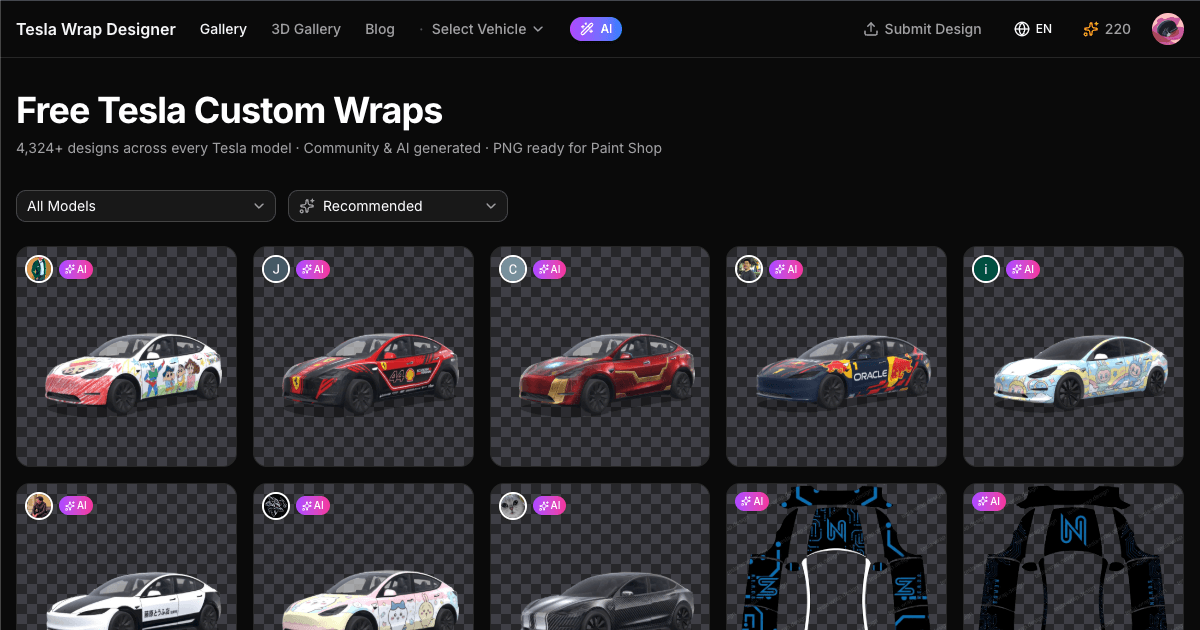
The gallery sorts by popularity by default, so the top results are designs that other Tesla owners have actually downloaded and liked. You can also filter by vehicle — Cybertruck wraps, Model 3 wraps, Model Y wraps.
Option 2: Design Your Own
Our online wrap editor gives you the correct UV template for your model with a drag-and-drop canvas. Add images, text, shapes, gradients — whatever you want. The key feature: a real-time 3D preview that shows exactly how your design maps onto the car before you download.
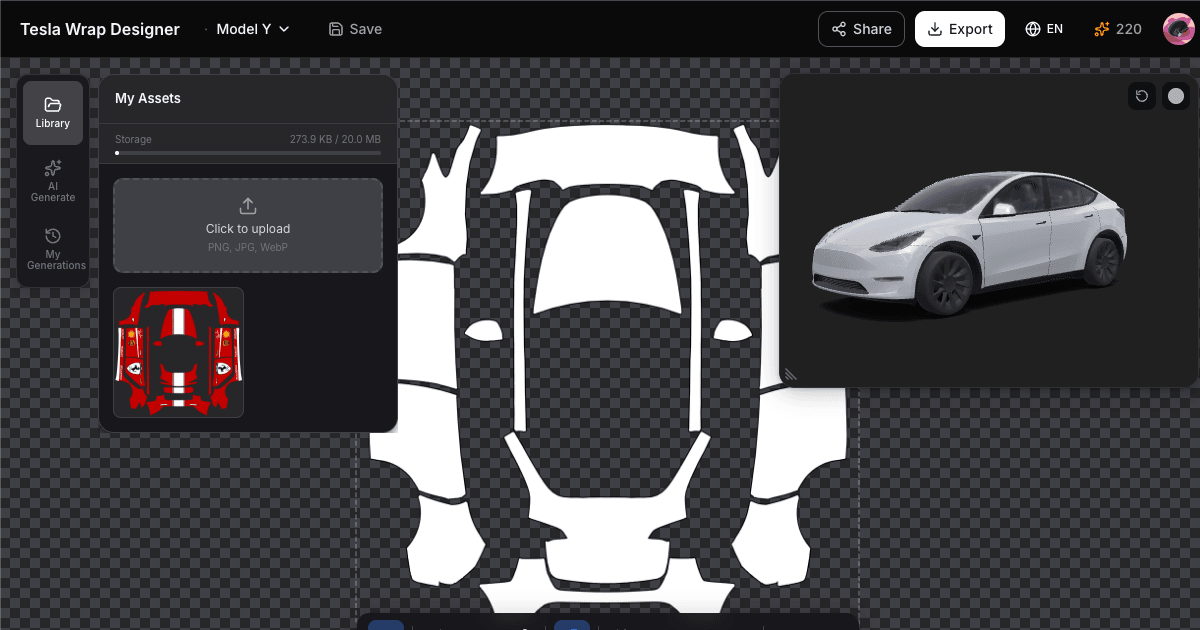
This matters more than you'd think. A design that looks great flat can look completely wrong on the 3D model because of how UV mapping stretches and compresses around curves. The 3D preview saves you from the trial-and-error loop of designing, loading onto USB, checking on the car, going back to fix it.
Option 3: Let AI Do It
Describe what you want — "matte black with gold racing stripes" or "anime girl with cherry blossoms" — and our AI generates a wrap that fits the UV template. It's not perfect every time, but it's a great starting point that you can then tweak in the editor.
Loading Your Wrap onto the Car
This is the part that trips people up, usually because of one small detail:
- Get a USB drive. Format it as exFAT or FAT32 (MS-DOS FAT for Mac users, ext3/ext4 also work. NTFS is not supported)
- Create a folder at the root level called
Wraps - Drop your PNG file(s) into that folder (max 1 MB each, 1024x1024 or 512x512, up to 10 files per session)
- Plug the USB into your Tesla (glovebox port works best)
- On the touchscreen: tap the Tesla logo → Toybox → Paint Shop → Wraps tab
- Your custom wraps appear alongside Tesla's built-in options
Common gotcha: if your wraps don't show up, check the folder name (must be exactly Wraps), file size (must be under 1 MB), and resolution (512x512 or 1024x1024). Also make sure the USB isn't formatted as NTFS — use exFAT or FAT32.
Design Tips from Experience
After seeing thousands of community designs, here's what separates the good ones from the great ones:
- Seam awareness — The UV template has visible panel boundaries (hood, doors, fenders). Designs that intentionally align with or flow across these seams look professional. Designs that ignore them look like wallpaper.
- Less is more — Full-body busy designs look impressive in the editor but often feel overwhelming on the actual car display. Some of the most downloaded wraps are simple: a single accent color, a clean stripe, a subtle gradient.
- Dark colors pop — The touchscreen has limited dynamic range. Dark, saturated colors tend to look better than pastels or very light designs.
- Always 3D preview — We can't stress this enough. What looks centered on the flat template might be off-center on the actual car. The 3D preview catches this instantly.
What's Next
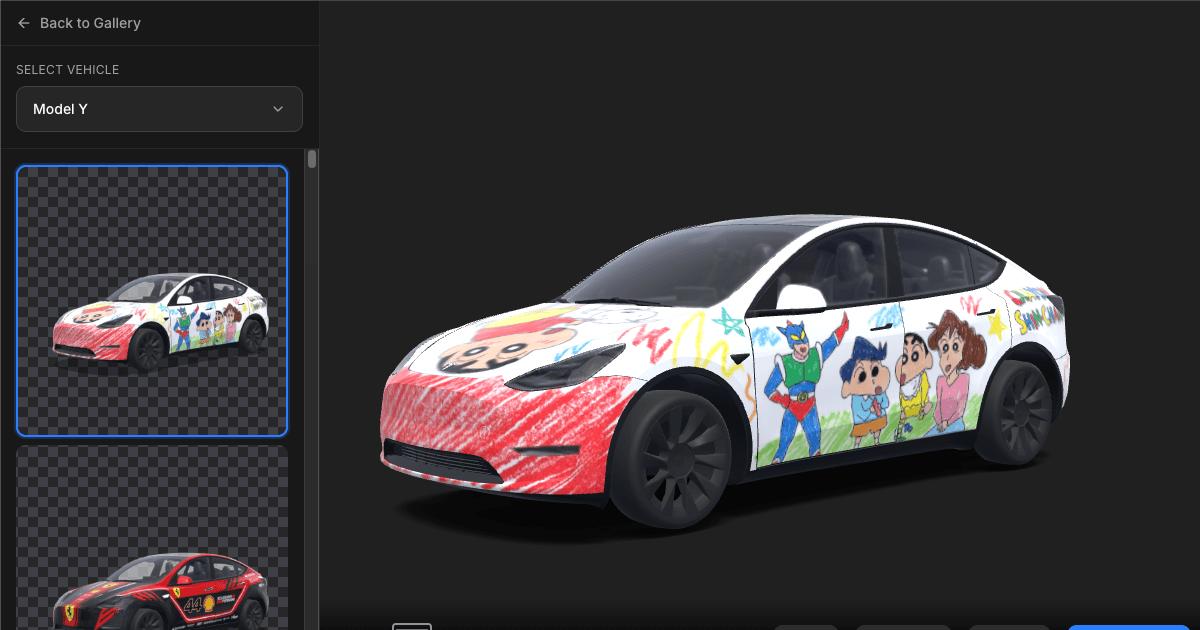
If you're new to this, start by browsing the gallery to see what's possible. When you're ready to make your own, open the editor and pick your model. The whole process from blank canvas to USB-ready PNG takes about 10 minutes once you know what you want.
And if you make something cool, submit it to the gallery. The best community designs get featured on our homepage, and there's something satisfying about seeing other Tesla owners driving around with your design on their screen.